
Thia Budget Manager — Powered Finance Control
💡 Thia Budget Manager — AI-Powered Finance Control
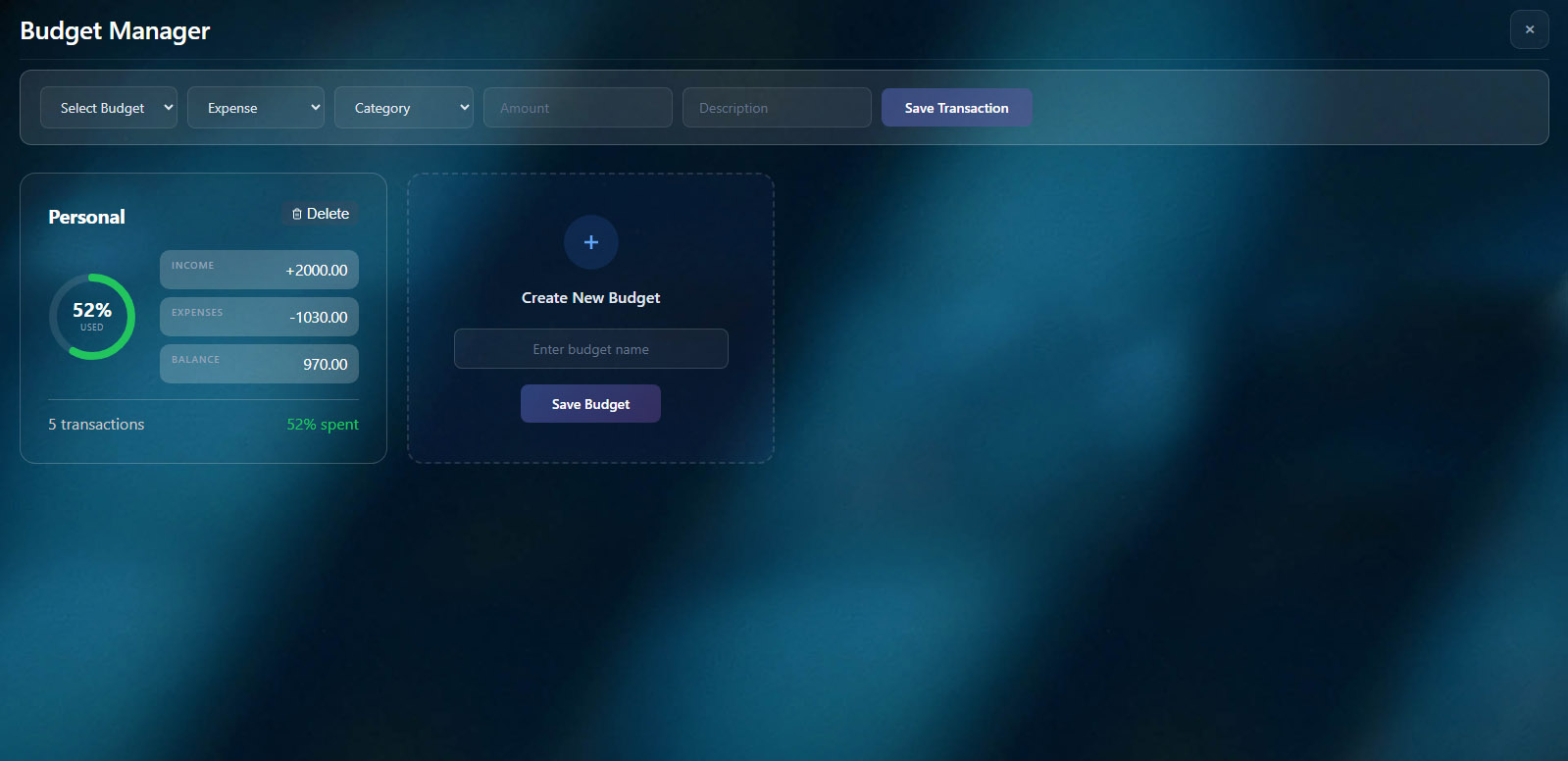
The Budget Manager is your central hub for tracking all income and expenses. You can create multiple budgets (Personal, Business, Projects, etc.) and manage each one separately with detailed breakdowns, goals, and visual charts.
Create & Manage Budgets
When you open the Budget Manager, you’ll see all your budgets as cards. Each card shows:
- Budget name
- Income total — all money received
- Expenses total — all money spent
- Balance — income minus expenses
- Spending percentage with a visual progress circle
- Transaction count
To create a new budget, scroll to the “Create New Budget” card at the bottom, enter a name, and click Save. You can also ask the AI: “Create a budget for my car expenses”.
Quick Add Transactions
At the top of the Budget Manager, there’s a Quick Add bar where you can manually enter transactions:
- Select Budget — choose which budget this transaction belongs to
- Type — choose Expense (money out) or Income (money in)
- Category — pick from Food, Transport, Utilities, Shopping, Entertainment, Health, Salary, Transfer, Fee, Mortgage, Credit, Leasing, Car Leasing, or Other
- Amount — enter the transaction amount
- Description — add optional notes
- Click Save Transaction
You can also tell the Thia directly: “I spent 35€ on gas today add to my Personal Budget” or “Received 2000€ salary this month add to my Personal Budget” — Thia will add the transaction automatically with the correct type, category, and amount.
Budget Detail View
Click any budget card to open the detailed view. Here you’ll find:
Balance Overview
At the top right, you’ll see the current balance (income minus expenses) displayed prominently.
Summary Stats
Three cards show Total Income (green), Total Expenses (red), and Transaction Count.
Monthly Bar Chart
A visual chart showing all 12 months of the current year (January through December). Each month has three bars:
- Green bar — Income for that month
- Red bar — Expenses for that month
- Blue/Orange bar — Savings (blue if positive, orange if negative)
Hover over any bar to see the exact amount.
Period Filters
Below the summary, you’ll find filter tabs:
- All — shows all transactions (default)
- Week — filters to show only this week’s transactions
- Month — filters to show only this month’s transactions
- Year — filters to show only this year’s transactions
- Custom — pick a date range (From → To) and click Go
When you apply a filter, the income, expenses, category circles, and transaction list all update to reflect the selected period.
Top Expense Categories
Colorful circles show your top 5 spending categories by percentage. The bigger the circle, the more you spent in that category.
Click any circle to see all transactions for that specific category in a popup modal, with date, description, amount, and total.
Recent Transactions Table
A table lists your most recent transactions with columns:
- Date
- Category (shown as a blue badge)
- Description
- Amount — green with + for income, red with – for expenses
- Delete button (trash icon) — click to remove a transaction (confirmation popup appears)
Budget Goals
Click the +Goal button in any budget detail view to set financial targets. You can create four types of goals:
- Expense Limit — set a maximum amount you want to spend (monthly or yearly). The progress circle turns red when you exceed 80%.
- Income Target — set a target income amount to reach. The circle fills blue until you hit 100%, then turns green.
- Savings Target — set how much you want to save. The circle shows your progress in purple.
- Debt Payoff — track specific debts like Mortgage, Credit, Leasing, or Car Leasing. Shows how much you’ve paid toward that debt.
Goals appear as progress circles in the budget header, showing percentage complete and amount used vs target.
Thia Receipt & Document Scanning
Thia can extract transactions automatically from:
- Photos of receipts — upload a receipt image and the AI reads the store, items, amounts, and date
- Bank statements — upload a PDF or screenshot and the AI extracts all transactions
- Invoices — the AI detects sender, amount, date, and category
Just say: “Here’s my receipt from Kaufland” and attach the image, or “Analyze this bank statement” with a PDF.
Search & Analysis
You can ask Thia questions about your budgets:
- “How much did I spend on food last month?”
- “Show my biggest expenses this year”
- “Compare my income vs expenses for March”
- “Find all transactions over 500€”
- “What’s my average monthly spending on transport?”
Deleting Transactions
Each transaction in the table has a trash icon. Click it, confirm in the popup, and the transaction is permanently deleted. The budget totals, chart, and category circles update automatically.
Navigation
- Back to All Budgets — returns to the main dashboard showing all budget cards
- Close button (×) — top right, closes the Budget Manager
- Escape key — also closes the Budget Manager
- Click outside the modal — closes it
Everything updates in real-time. Add a transaction, set a goal, or delete an entry — all charts, circles, percentages, and totals recalculate instantly.


