Thia Aide WordPress Integration
WordPress Integration
Connect your WordPress site and manage all your content directly through the Thia Assistant. Create, edit, publish, and manage pages, posts, and WooCommerce products using natural language.
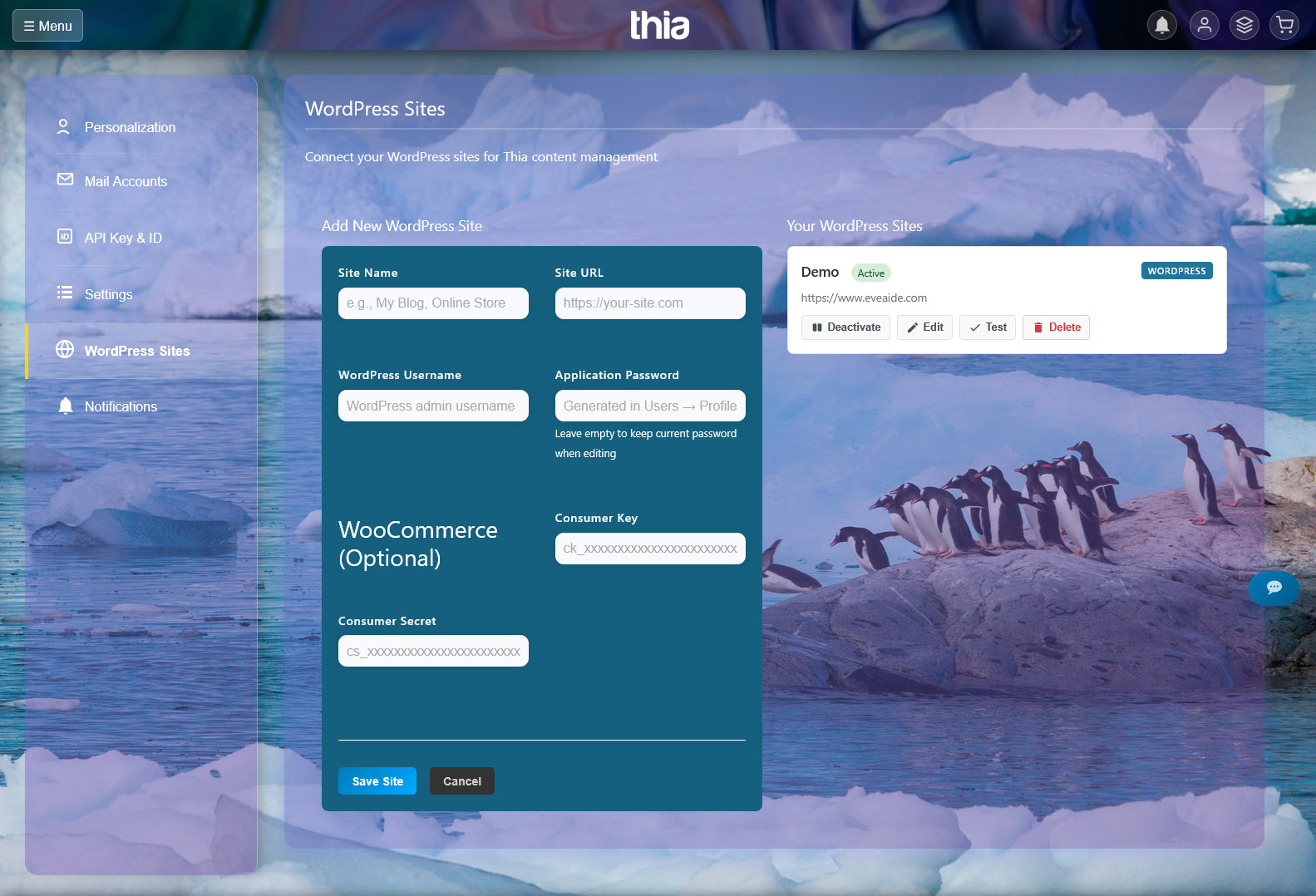
Setup
- Go to Settings → WordPress Sites
- Click Add Site
- Enter your site URL, WordPress username, and Application Password
- To generate an Application Password, go to your WordPress admin → Users → Profile → Application Passwords
- Optionally add WooCommerce Consumer Key and Secret for product management
- Click Save Site, then Test to verify the connection
Supported Content Types
| Type | What You Can Do |
|---|---|
| Posts | Create, read, edit, publish, delete blog posts with categories and tags |
| Pages | Create, read, edit, publish, delete static pages |
| Products | Create, read, edit, publish, delete WooCommerce products (requires WooCommerce) |
Available Actions
| Action | Description |
|---|---|
| Create | Create new content as a draft |
| Read | View a specific item by its title |
| Update | Edit existing content (title, content, category, tags) |
| Publish | Make a draft live on your site |
| Delete | Remove content permanently |
| List | Show all content of a specific type |
Example Commands
Creating Content
“Create a new post about antique furniture restoration tips. Put it in the Furniture category with tags restoration and antiques.”
“Write a page called About Our Collection with information about our antique sourcing process.”
“Create a new product for a Victorian era mirror with description and price details.”
Viewing Content
“Show me all pages on my WordPress site.”
“Find the post about furniture restoration and show me its content.”
“List all products in my store.”
Editing Content
“Update the About Our Collection page – add a section about our restoration workshop.”
“Change the title of the furniture restoration post to ‘Expert Antique Furniture Restoration Guide’.”
“Move the Victorian mirror post to the Mirrors category.”
Publishing & Managing
“Publish the draft about antique furniture restoration.”
“Delete the old test page called Test Page Direct.”
“Search for all posts about mirrors and show me their status.”
Tips
- Categories and tags – Just mention the name, the system finds the matching category or tag automatically
- Finding content – Use the exact title when updating or publishing. If you’re not sure, use “list” first
- Content format – The AI generates HTML formatted content. You can ask for specific formatting like headings, lists, tables, and more
- Drafts first – All new content starts as a draft. Review it in WordPress admin before publishing, or ask the AI to publish it for you
- Multiple sites – You can add multiple WordPress sites. Only the active one will be used for AI operations
Security
- Your WordPress Application Password is encrypted before storage
- WooCommerce API keys are also encrypted
- You can deactivate a site anytime without deleting it
- Use WordPress Application Passwords – never share your main WordPress password