
How to set up the Thia Aide AI Receptionist?
How to Set Up the Thia Aide AI Receptionist
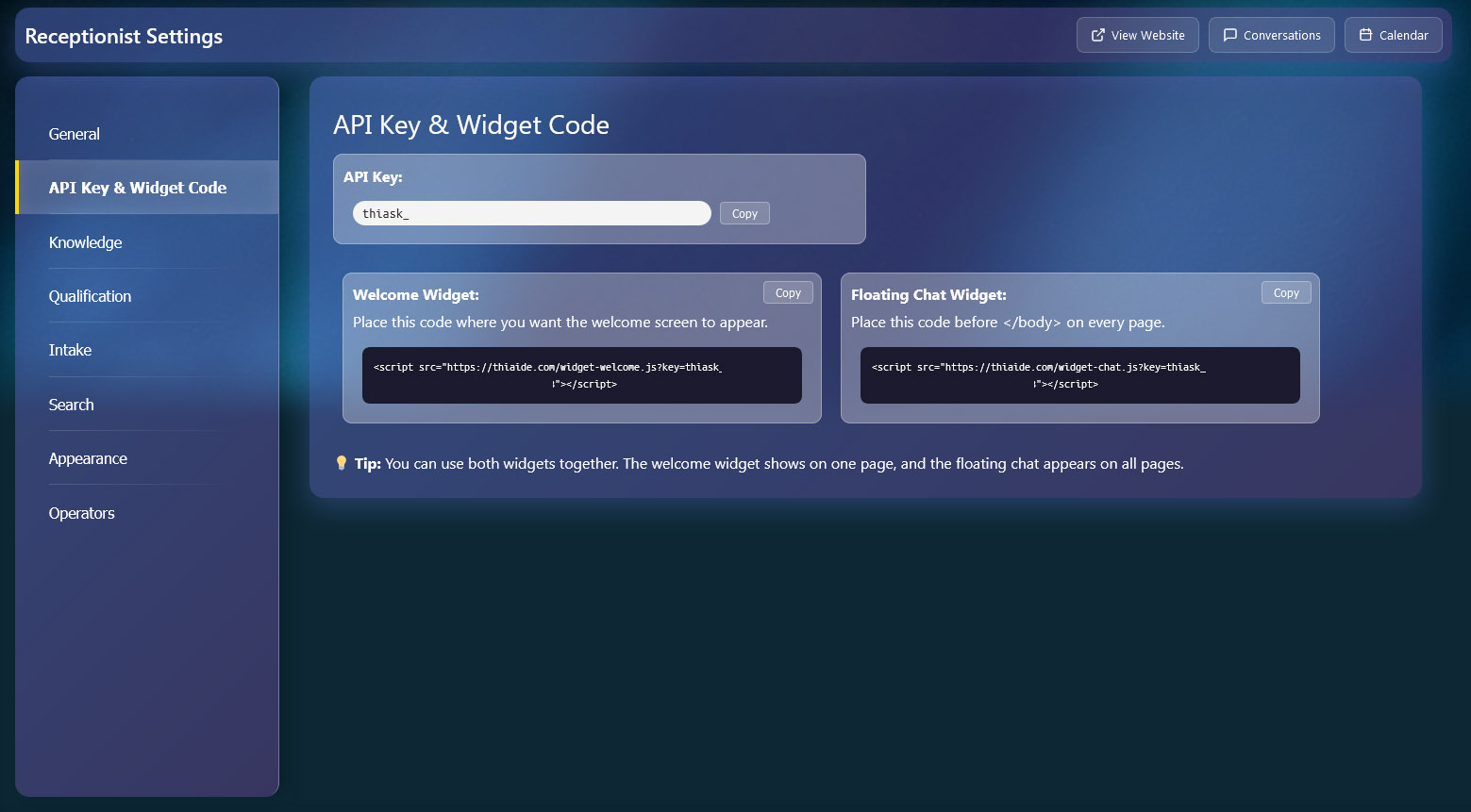
Simply copy and paste the widget codes into your website. No coding skills required!
Place this code where you want the welcome screen to appear (homepage, landing page, etc.)
<script src="https://thiaide.com/widget-welcome.js?key=YOUR_API_KEY"></script>
💡 Replace YOUR_API_KEY with your actual API key from Settings → API Key & Widget Code
Place this code before the closing </body> tag on every page you want the chat to appear.
<script src="https://thiaide.com/widget-chat.js?key=YOUR_API_KEY"></script>
💡 Replace YOUR_API_KEY with your actual API key from Settings → API Key & Widget Code
💡 Tip: Use both widgets together —
Welcome Widget for a full-page experience and
Floating Chat for always-available support.
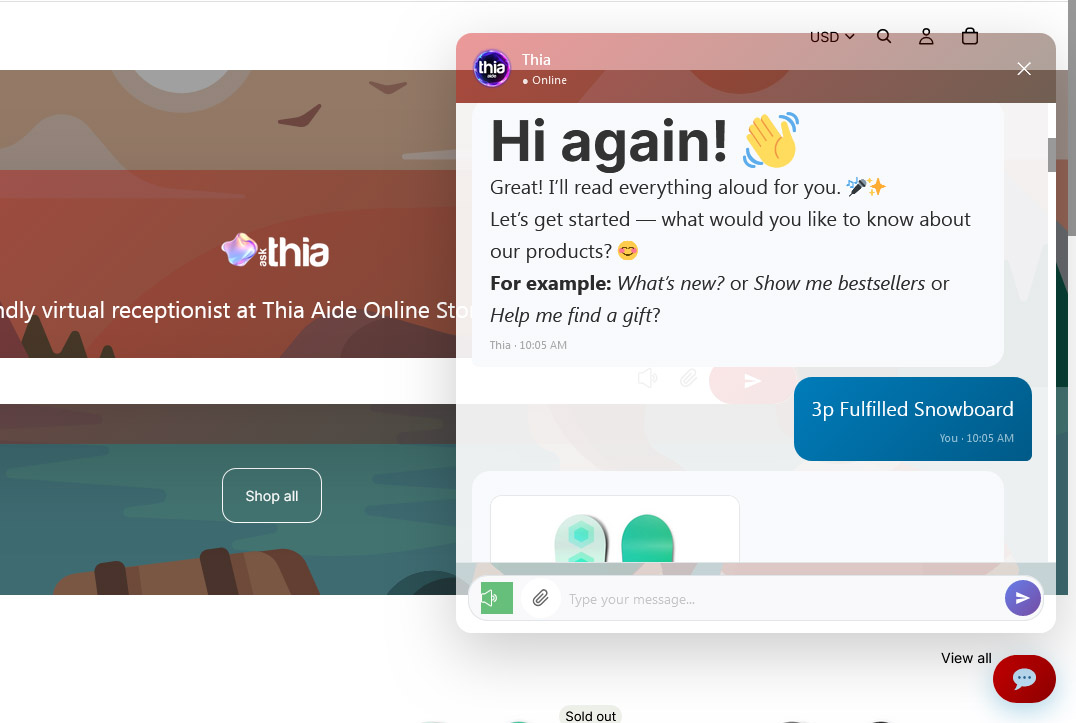
Where to Place the Widgets
Choose the best placement for your needs:
- Homepage hero section
- Landing pages
- Dedicated “Contact” or “Help” page
- Replace traditional contact forms
- Footer of every page (before </body>)
- Global site template
- Always accessible support
- Works on mobile and desktop
Get Your API Key
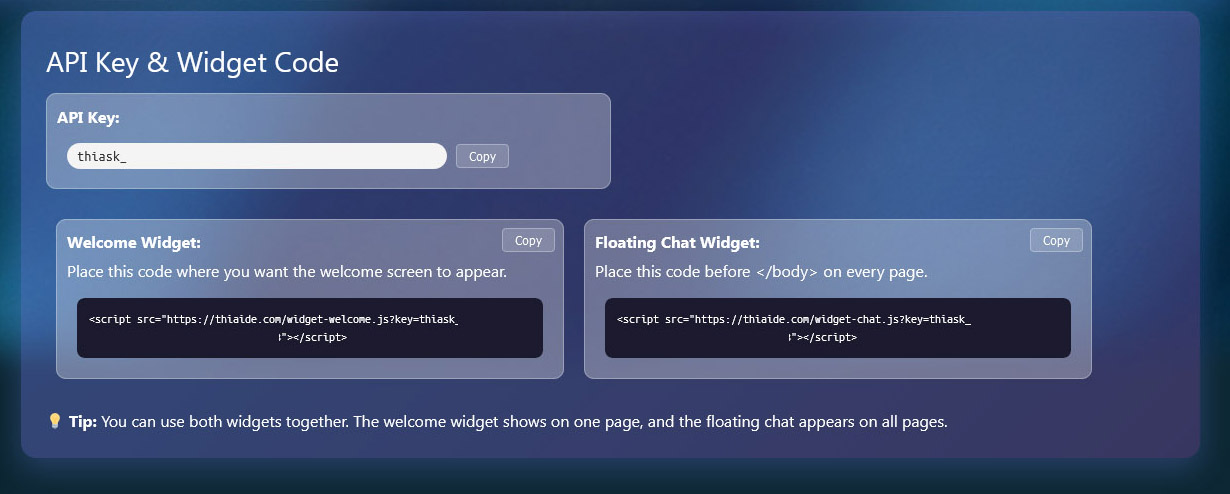
Your unique API key is automatically generated and available in your settings:
- Go to Settings → API Key & Widget Code
- Copy your API Key
- Replace
YOUR_API_KEYin the widget codes above
Example API Key: thiask_1GAEpQbd8JLn8....


